

Create a Self-Managed Supplier
Create a Self-Managed Supplier
A Supplier in PurchasePlus can be:
- A Registered Supplier, meaning that the Supplier has an account in PurchasePlus, and users at that Organization sign in to our system to maintain their Products, Catalogs and more.
- A Self Managed Supplier, meaning that your Purchasing Organization ‘owns’ the Supplier entity in our system. It has been created by a user at your Organization, and all Products and Catalogs assigned to this Supplier are also owned by your Organization. Members of this Supplier Company will never know that their 'Supplier' Organization exists in PurchasePlus, and they cannot sign in to our system.
Please read our article Introduction to Suppliers for more information about Suppliers in PurchasePlus.
Create a Self Managed Supplier
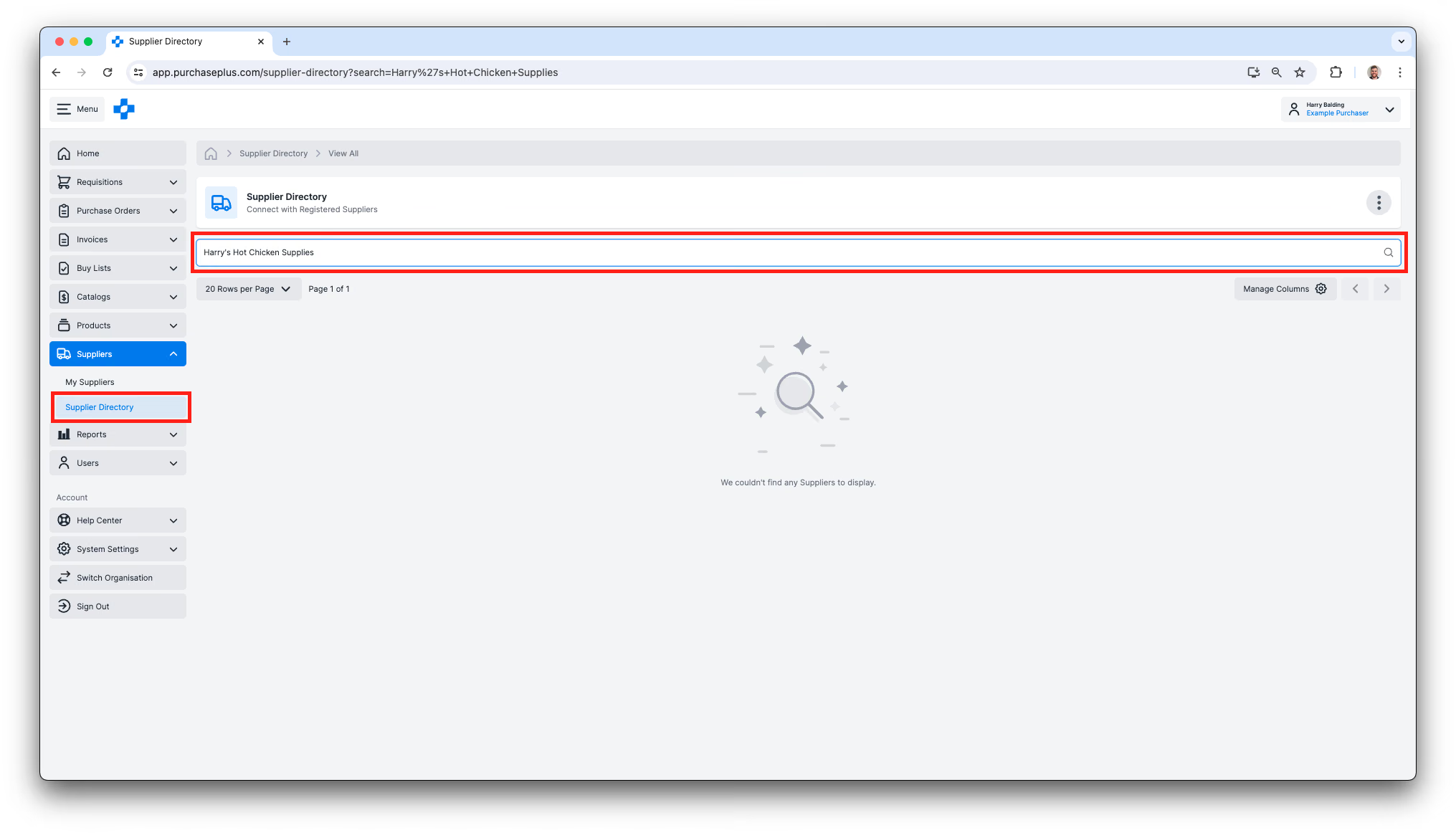
- Prior to creating a new Self Managed Supplier, please search the Supplier Directory to see if the Supplier is already a Registered Supplier in PurchasePlus, and if they do, then connect to the Supplier. If you intend to fully-manage the Supplier's Catalogs on their behalf, then don't worry - Purchasers can create and assign Self Managed Products and Self Managed Catalogs to a Registered Supplier, and they will never be able to view, edit or delete them.
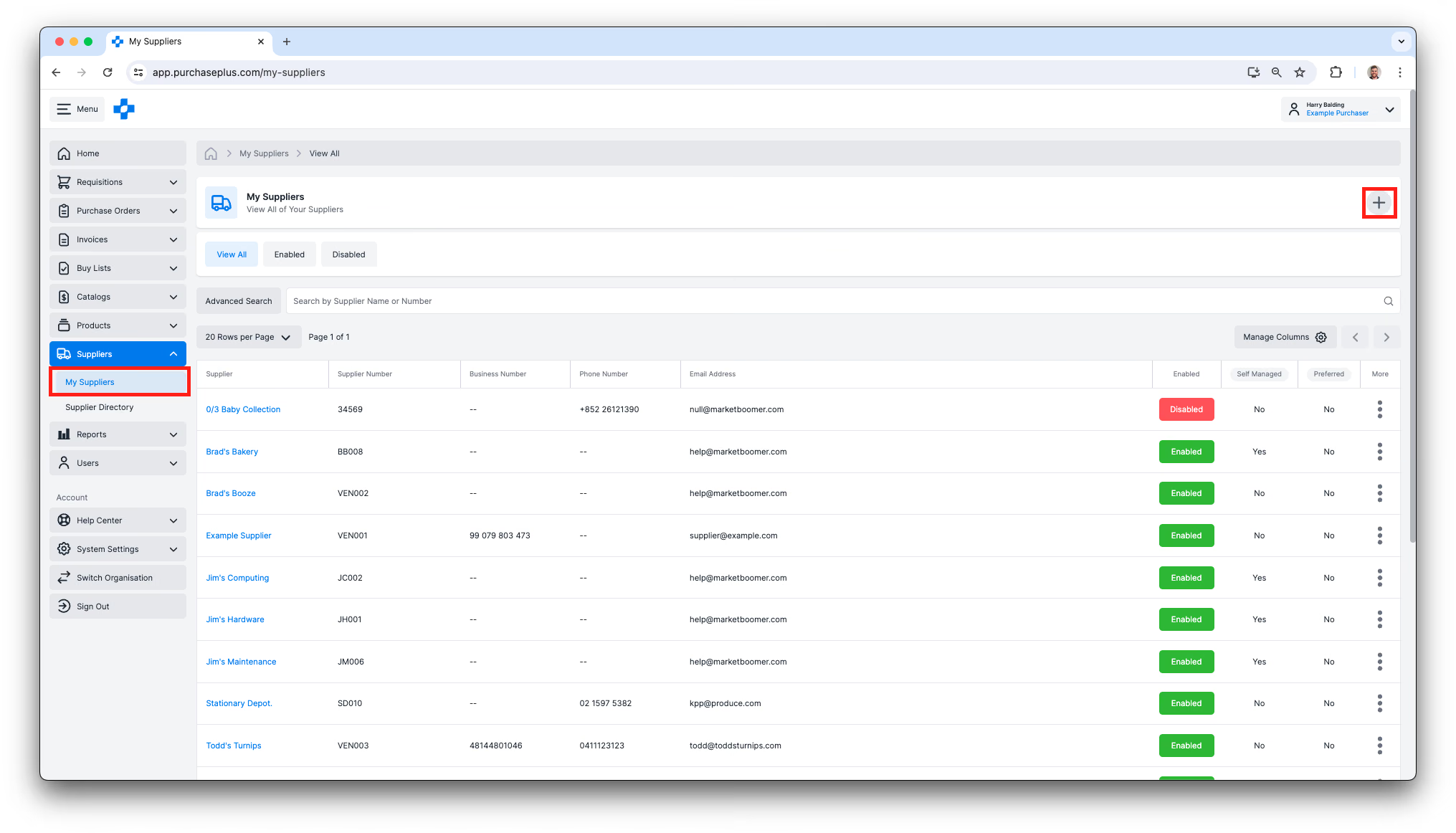
2. If the Supplier you are interested in does not have a Registered Supplier account, click [Suppliers] → [My Suppliers] in the side navigation menu, and then click the [Create a New Self Managed Supplier] button.
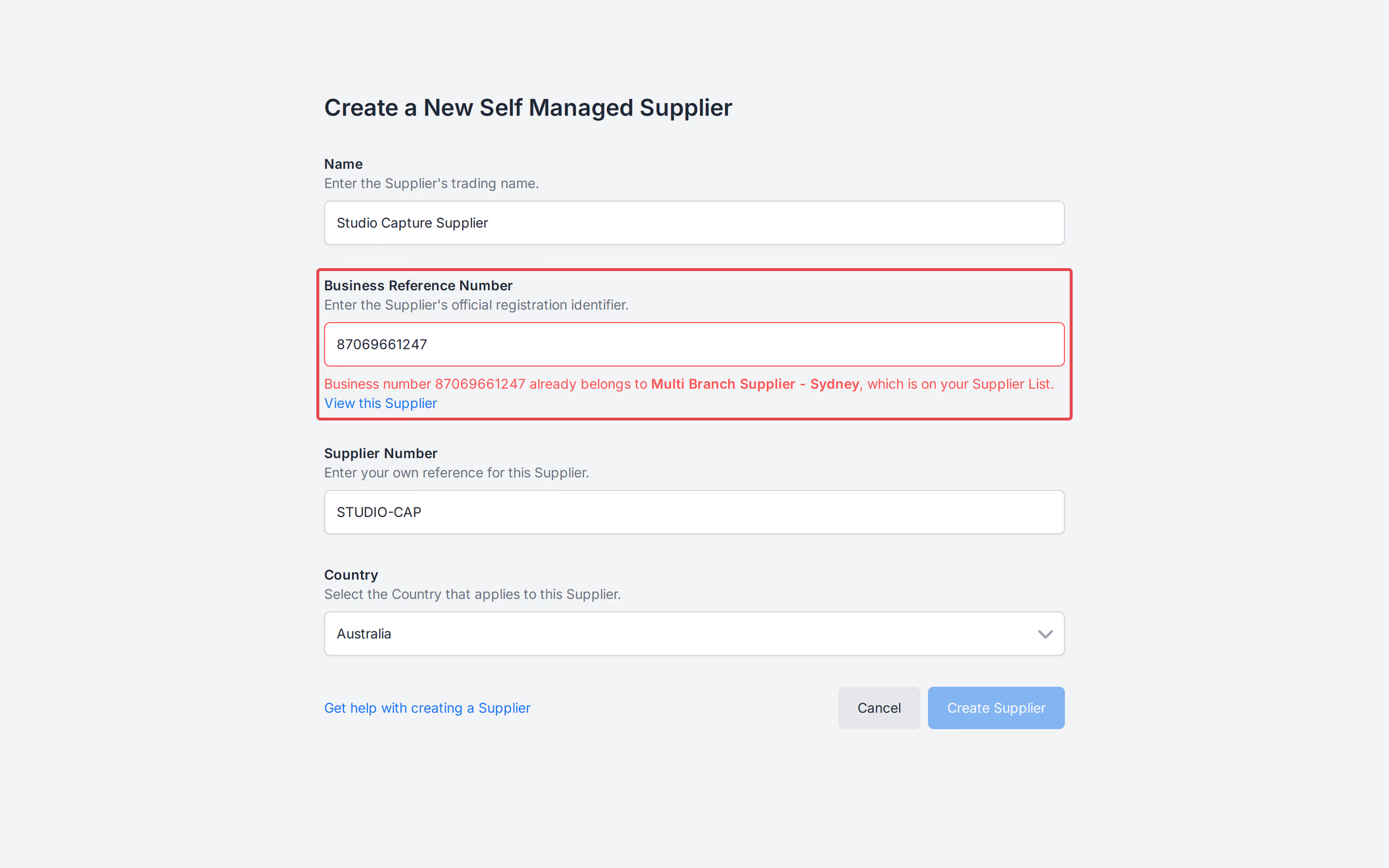
3. Complete the form, then click [Create Supplier].
- Enter the Name.
- Enter Business Reference Number. This is the Supplier's official registration identifier.
- Enter your Supplier Number.
- Select the Country.
Note - If Business Reference Number is blank, select [Add Business Reference Number] or [Proceed Without It]. PurchasePlus uses this number to identify the Supplier on their Invoices. Without it, Invoices from this Supplier may not process automatically.
Note - If the Name or Business Reference Number is already stored, the field shows a warning with that Supplier's stored name. Change the field, and [Create Supplier] becomes available again. A match on your Supplier list includes [View this Supplier]. A match in the Supplier Directory includes [Connect via the Supplier Directory].
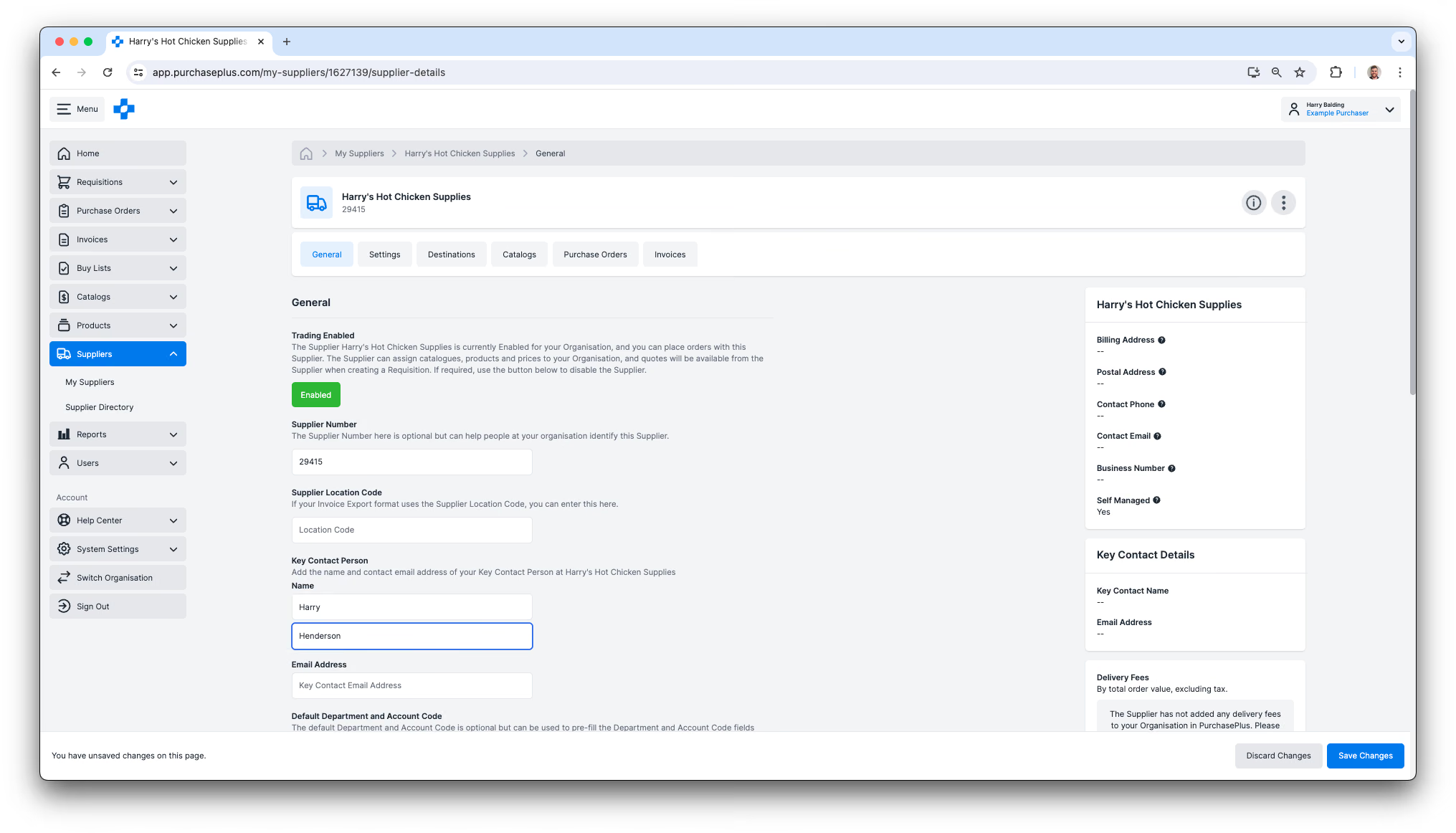
4. After the Self Managed Supplier is created, you are taken to their new Profile. Add profile detail as needed — for example, ensure Purchase Orders are sent to the right Destination (e.g. an email inbox), and set the default Department and Account Code at your Organisation.
Note - Users with the Manage AP Systems permission can also add an existing Supplier to their AP System by Supplier ID. See Add a Supplier to an AP System in our 'Overview' article to learn more.
The new Self Managed Supplier will now appear in your [My Suppliers] area, and they are ready for you to assign Catalogs to the Supplier via your Trade Relationship, and begin adding their Products to your Requisitions.