

Navigation
Navigation
Accessing PurchasePlus
- Access our Home Page: Simply follow: https://app.purchaseplus.com/ or type purchaseplus.com in your web browser's URL bar. We recommend Google Chrome as your web browser.
- **Sign In:** Follow our help article: Sign In to PurchasePlus.
- Password Assistance: Follow our help article: Reset your Password.
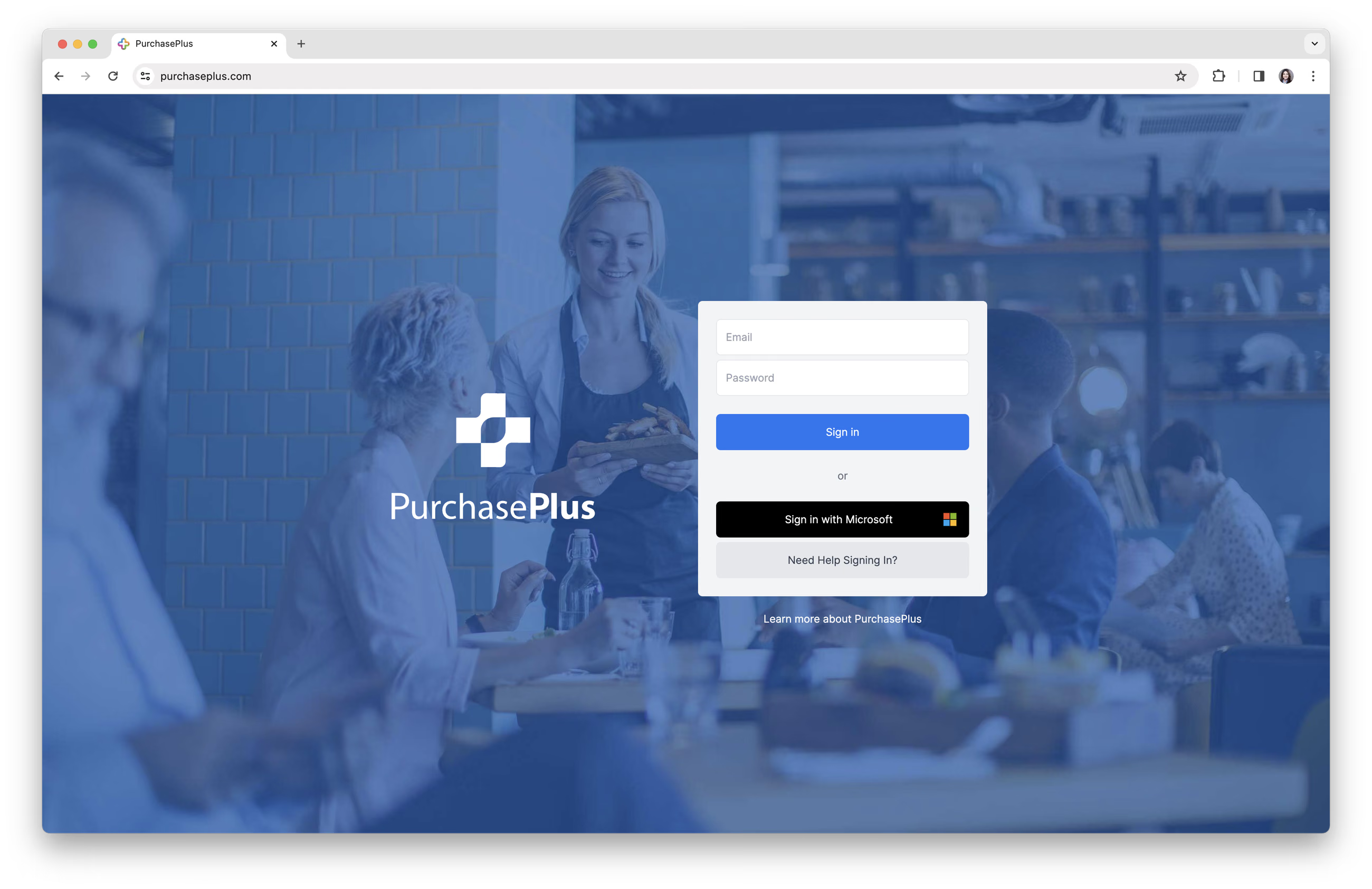
Side navigation
Main Menu
Located on the left-hand side, the main menu organizes PurchasePlus into key areas, and is configured based on the PurchasePlus modules your Organization is using.
1. Click on each [Item] to expand a drop-down list of related sub-pages. Select any item to navigate directly to that section.
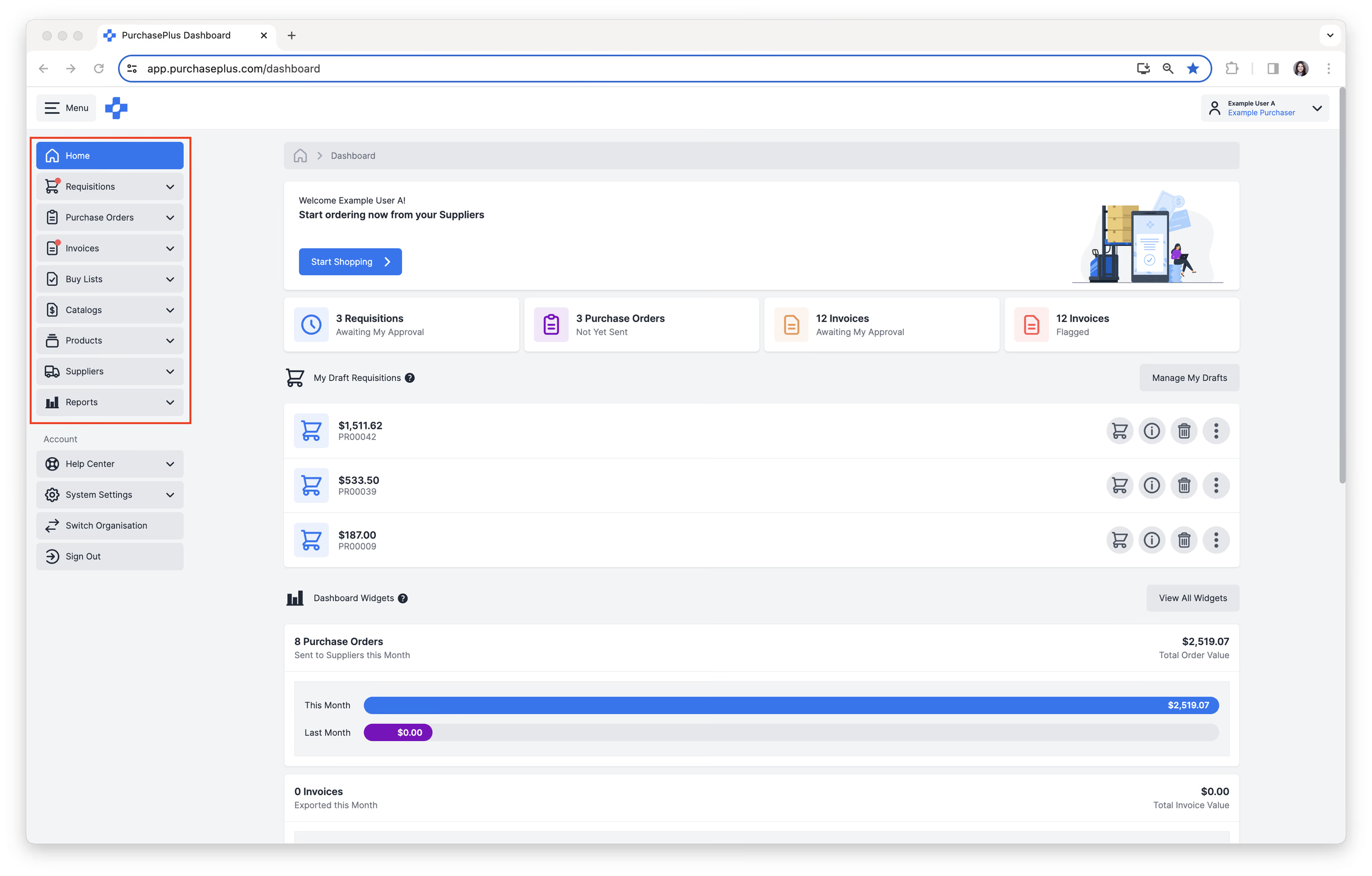
Account Section
The Account Section provides access to:
- [Help Center]: [Open Live Chat], [Knowledge Base], [Live Webinars], [Release Notes], [Leave Feedback]. [Knowledge Base] (and in-app Help, More, and page-header Help) opens the published documentation at https://www.purchaseplus.com/docs. [Live Webinars] opens the training calendar. [Release Notes] opens product updates.
- [System Settings] → [Manage Organizations].
- [Switch Organisation]. Allows you to switch to a different Organization, or a different department within an Organization. You must be a member of an Organization to be able to switch to it. When switching to a different Organization, your entire session will change to that Organization. You can switch between Organizations at any time.
- [Sign Out]. You will be signed out of PurchasePlus.
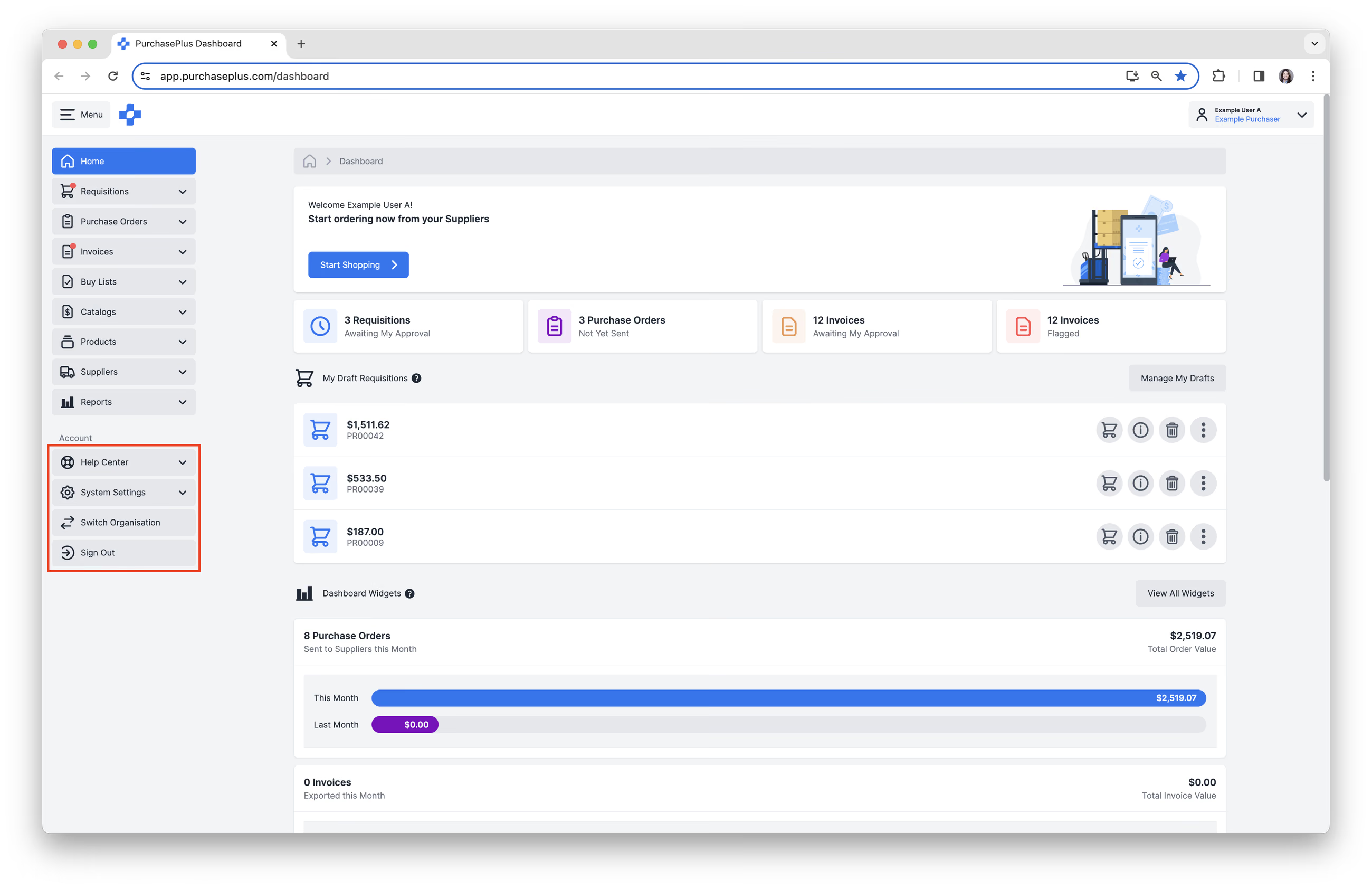
Account menu
You can access additional functionality via the menu in top right corner of PurchasePlus. The Top Right Menu provides access to:
- [My Account]. Provides you with general information and settings such as Email Address, Language, View Preference Settings, and Approval Notifications.
- [Open Live Chat]. Start a live chat conversation with one of our friendly Customer Success Team Members.
- [About]. Provides helpful information about your user account and your session. You may be asked to open this when you require assistance from one of our friendly Customer Success Team Members.
- [Go to Legacy P+]. Redirects you to our Legacy P+ interface.
- [Switch Organisation]. Allows you to switch to a different Organization, or a different department within an Organization. You must be a member of an Organization to be able to switch to it. When switching to a different Organization, your entire session will change to that Organization. You can switch between Organizations at any time
- [Sign Out]. You will be signed out of PurchasePlus.
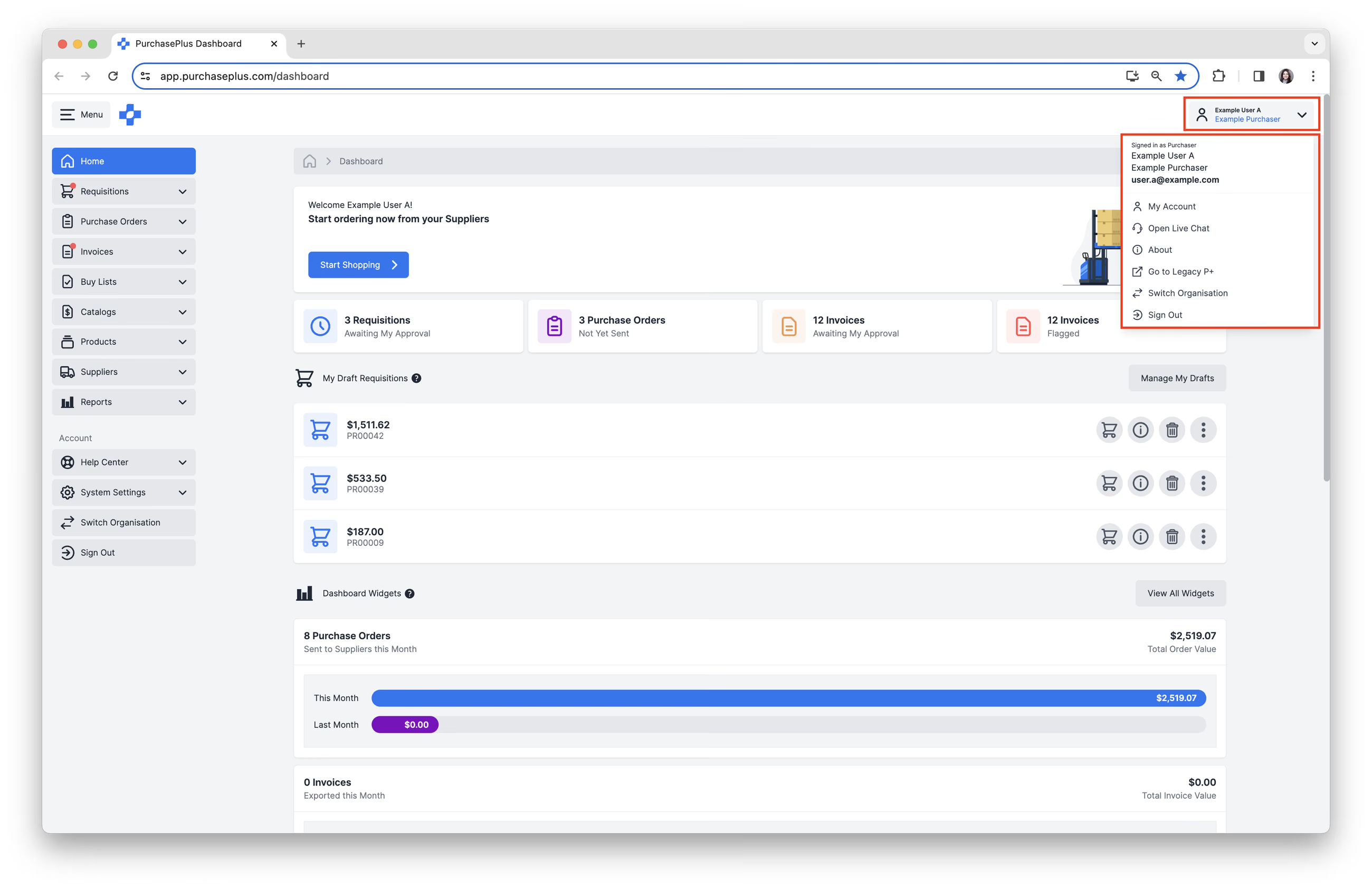
Dashboard
The Dashboard is split into 4 sections:
1. [Start Shopping], this will create a new Requisition.
2. Waiting work is shown in two rows. A row with no tiles hides its heading. PurchasePlus shows a tile when your Organization uses that module.
- Awaiting My Approval.
- [Requisitions]. Opens Requisitions awaiting your approval. See our 'Approve a Requisition' article to learn more.
- [Credit Notes]. Opens Credit Notes awaiting your approval.
- [Invoices]. The tile shows how many Invoices are awaiting your approval, then "of", then the flagged Invoice count. For example, 5 Invoices of 2 means 5 awaiting your approval and 2 flagged. See our 'Approve Invoices' article to learn more.
- [Transfers]. Opens Transfers awaiting your approval.
- Requires My Attention.
- [Purchase Orders], with the subtitle Not Yet Sent. Opens Purchase Orders that have not been sent to the Supplier. See our 'Send a Purchase Order' article to learn more.
- [Documents], with the subtitle Supplier Required. Opens files that still need a Supplier.
- [Statements], with the subtitle Require Reconciliation. Opens open Statements for your Organization and those below it, filtered to open.
Note - On a paperless Home dashboard, the welcome action is [View Invoices]. On a purchasing Home dashboard, the welcome action is [Start Shopping], and My Draft Requisitions is on that dashboard.
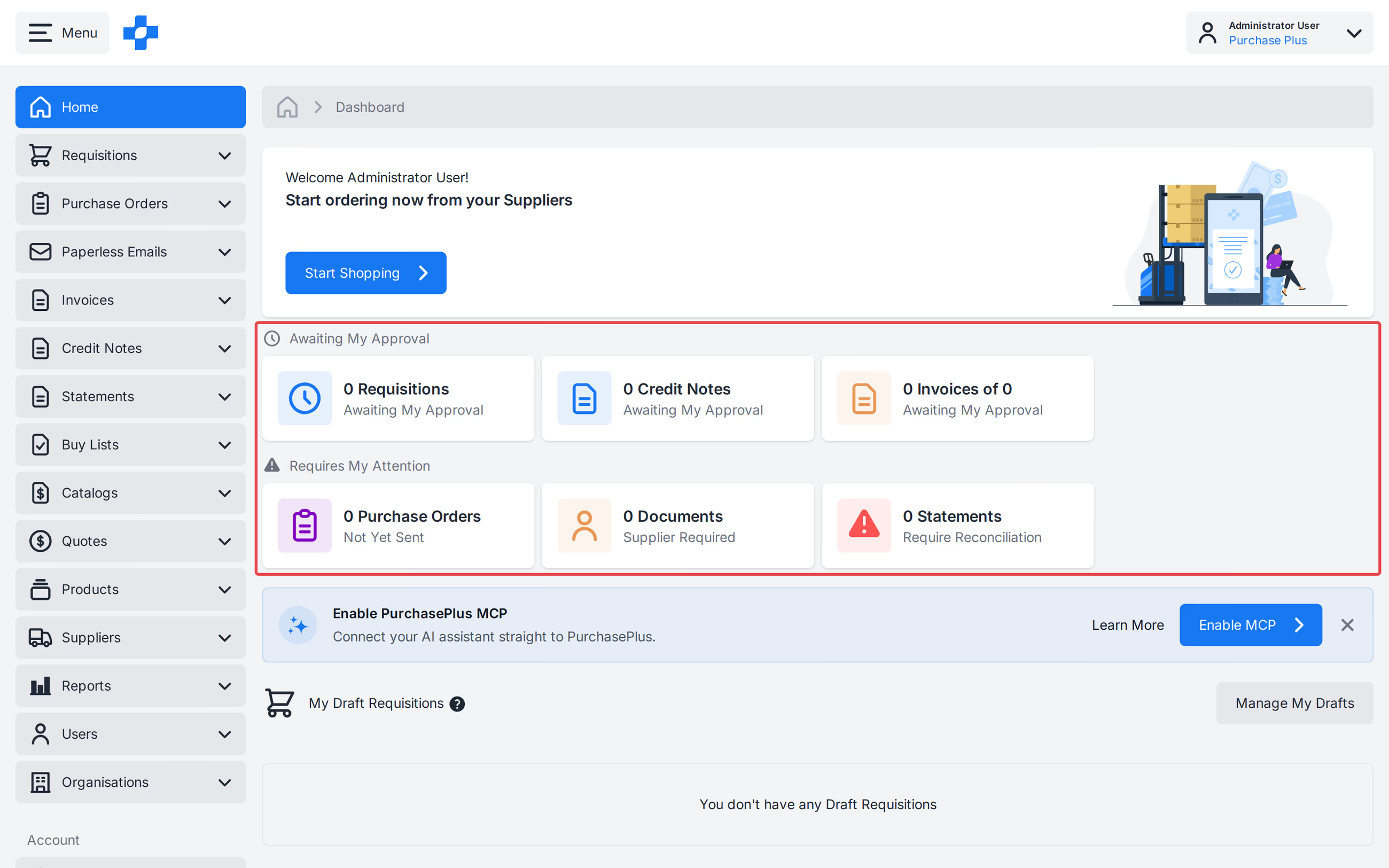
3. My Draft Requisitions, Drafts are Requisitions that you have started and saved, but you are yet to submit them for approval. You can resume shopping or cancel these at any time. See our View Draft Requisitions article to learn more.
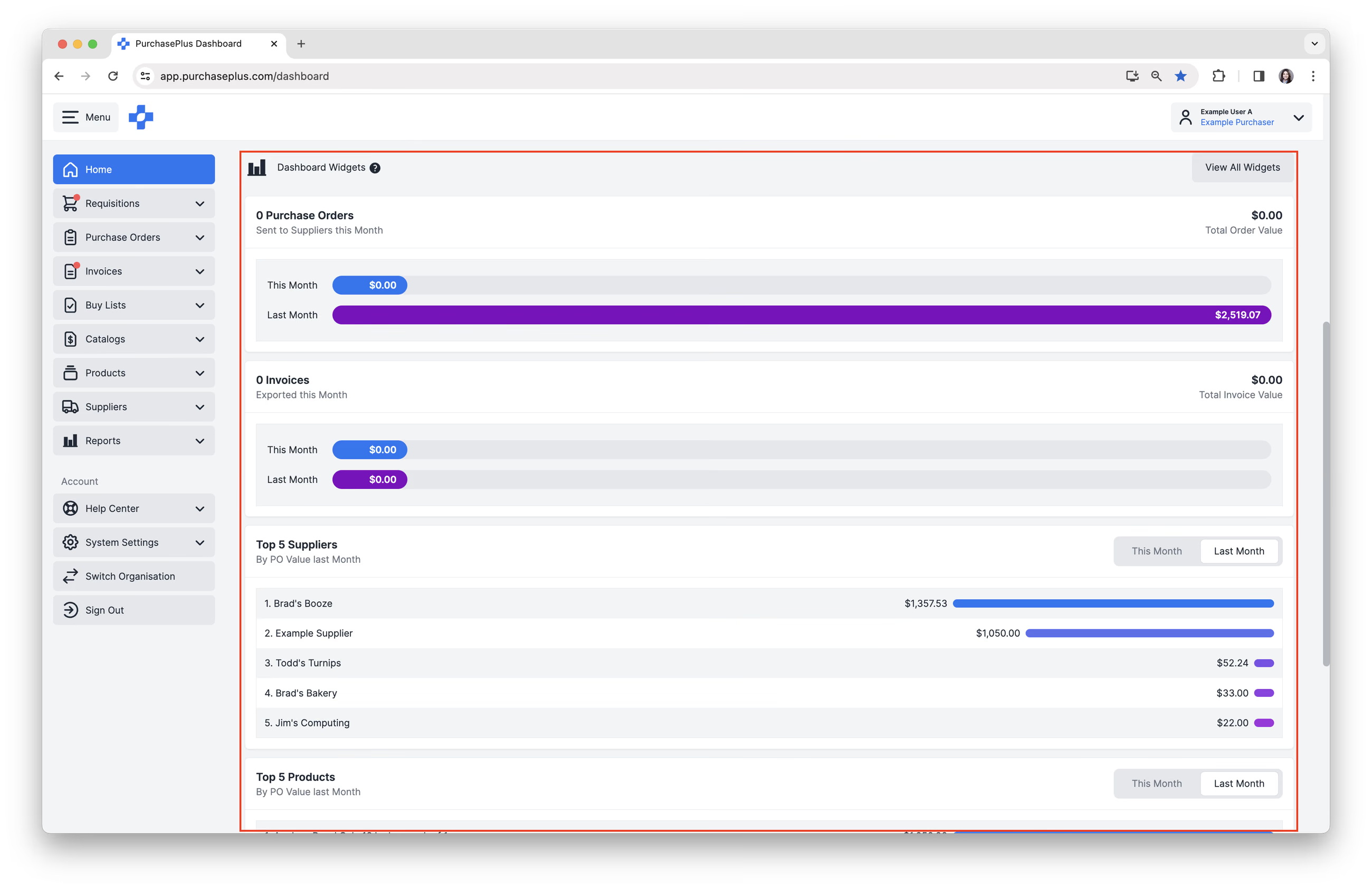
4. Dashboard Widgets, provide key data insights for your Organization. For example:
- Number of Purchase Orders Sent to Suppliers & Purchase Order Value for the current month compared to the previous month.
- Number of Invoices Exported & Invoice Value for the current month compared to the previous month.
- Deliveries Due Today or Tomorrow, which is driven by the Delivery Date specified on a Purchase Order.
- Top 5 Suppliers ranked by Purchase Order Value for the current month compared to the previous month.
- Top 5 Products ranked by Purchase Order Value for the current month compared to the previous month.
If you encounter any issues or require additional assistance, our support team is always ready to help. Don't hesitate to contact us anytime.